
How to Swap Faces Between Two Photos

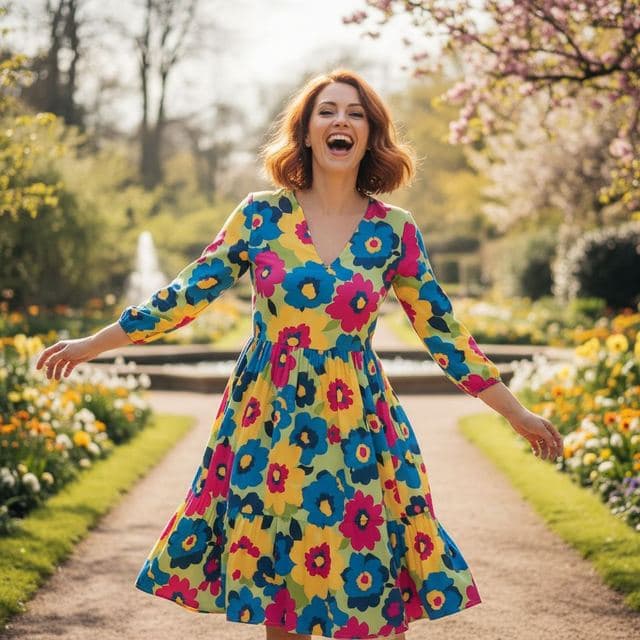
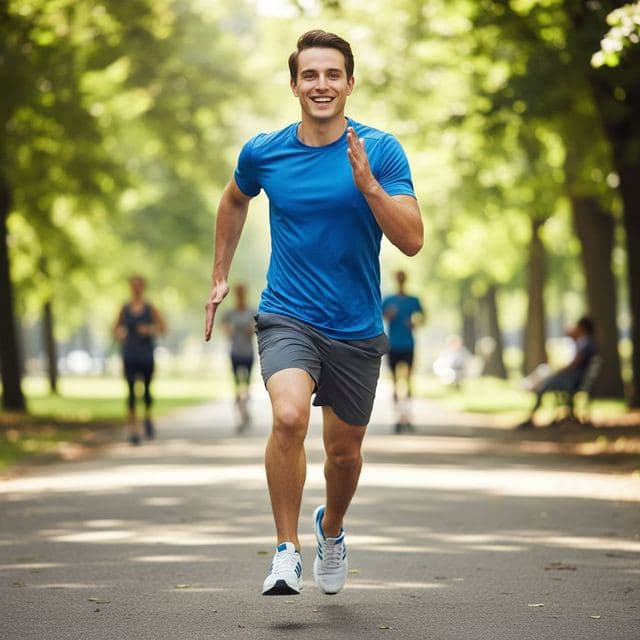
Say you have a great photo from a wedding where the lighting, outfit and background are perfect, and a close-up from the same day where your expression is better. Swapping faces between two photos lets you combine them.
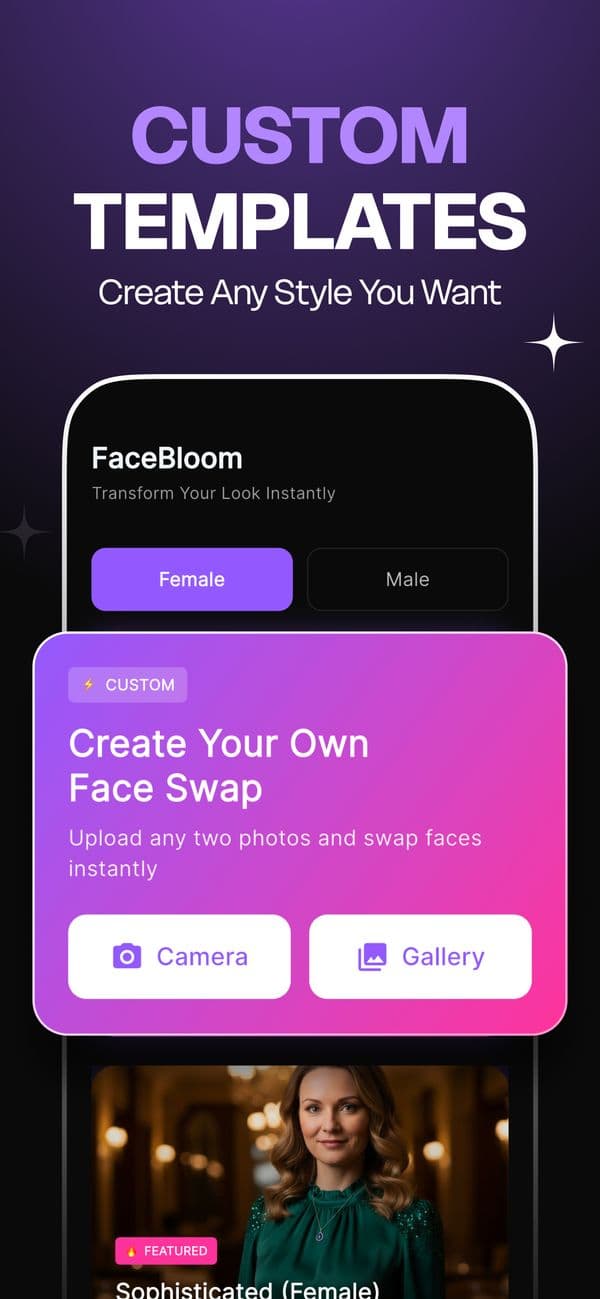
In Face Swap AI, tap Create Your Own Face Swap, choose the photo with the face you want, choose the photo it should go into, and tap Swap Faces. The rest of this guide is about picking two photos that blend well.


Quick steps
- Open Create Your Own. On the home screen, tap the pink Create Your Own Face Swap card.
- Pick the face. Choose the photo that has the face you want to use, from Camera or Gallery.
- Pick the target photo. Choose the photo the face should go into. Its hair, body, clothes and background are kept.
- Swap and check. Tap Swap Faces, wait for the result, and compare it at full size before saving.
Which photo is the face and which is the target?
The face photo gives the eyes, nose, mouth, skin and jaw shape. The target photo gives everything else: hair, ears, neck, body, clothes, background and lighting.
If you mix them up, you'll get the other person's face on your outfit. It's a common first-try mistake, and the fix is just running the swap again with the photos the other way round.
Match these three things for a clean face swap
- Head angle. Both faces should point roughly the same way. Front to front is easiest. A three-quarter turn in one and a straight-on face in the other is where seams appear.
- Light direction. If the target photo is lit from the left, a face photo lit from the left will sit in it naturally. Flat, even light in the face photo is the safest compromise.
- Face size. The face in the face photo should be at least as large as the one in the target. Blowing up a tiny face makes it soft.
 Your photo
 Template
 Result
Good uses for a two-photo face swap
- Fixing a shot where you blinked, using a better expression from another photo taken the same day.
- Seeing a haircut or outfit on yourself by using a photo of it as the target.
- Trading faces with a friend for a laugh. Run it twice to swap both ways.
- Putting yourself into a holiday photo where you were the one holding the camera.
Swap faces with consent
Only use faces of people who have agreed to it, and don't pass a swapped photo off as a real event. That covers friends, family and especially public figures. Our face swap safety guide goes into what that means in practice.
Questions
Can I swap my face with a friend's?
Yes, with their OK. Use your photo as the face and theirs as the target, then run it again the other way round to trade faces both ways.
Why does the swapped face look pasted on?
Usually the two heads are turned differently or lit from different sides. Choose photos with matching angles and similar light, and the seam disappears.
Keep reading

8 tips for a realistic face swap
Why some face swaps look fake and how to fix it: angle, light, sharpness, expression, hair, glasses and skin tone. Eight tips for any AI face swap app.



How to face swap on iPhone
Face swap on iPhone in five steps: install, pick a template or two photos, add a selfie, tap Swap Face, save. Works on iPhone and iPad with iOS 13 or later.


Face changer AI: how it works
Face changer AI for iPhone and Android. Put your face into 60+ photo templates or change faces between any two photos. Ready in under a minute.