
How to Face Swap on Android (No App Needed)



To face swap on Android without installing anything, open faceswapai.app in Chrome, tap Your face to take a selfie, pick a template or add your own photo, and tap Swap faces. The result is ready in seconds, and Download saves it to your phone.
It works the same way on Samsung, Pixel, Xiaomi and other Android phones. The steps below go through each screen, plus the settings that can get in the way.
Quick steps
- Open the studio. Go to faceswapai.app in Chrome or Samsung Internet and tap Start swapping.
- Add your selfie. Tap Your face. Android offers your camera or your photos; choose the camera to take a selfie, or pick one you already have.
- Choose a template or photo. Open Templates and tap one, or stay on Face swap and add a target photo from your gallery.
- Tap Swap faces and sign in. Tap Swap faces. The first time, a sign-in window opens on the same page: use Continue with Google, or type the code we email you.
- Save or share. Tap Download to save the photo, or Share to send it straight to WhatsApp, Instagram or any other app.
Before you start
- An Android phone or tablet with Chrome or Samsung Internet.
- A clear selfie, or good light to take one.
- An internet connection. The swap runs on a server, not on your phone.
- A starter pack or PRO plan. You'll see the options when you make your first swap.
What the studio looks like on Android
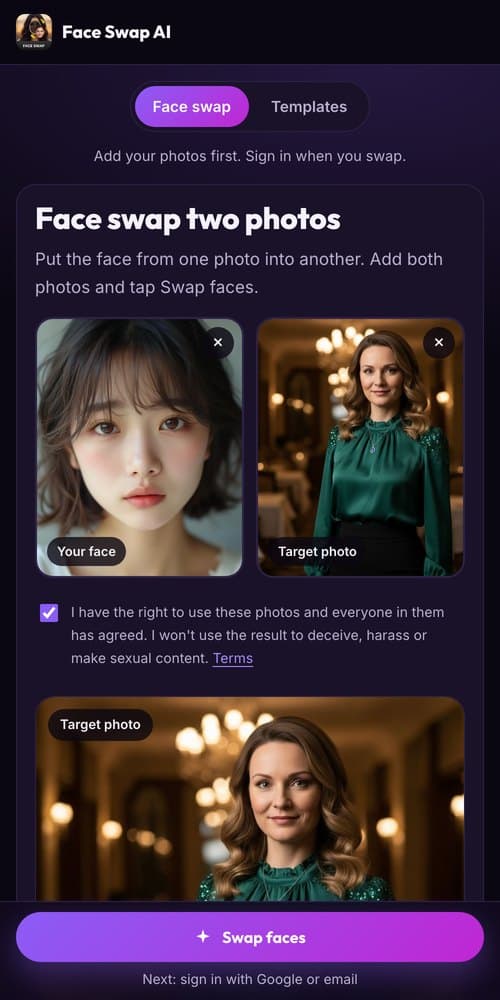
The studio has two tools, switched at the top: Face swap for two photos of your own, and Templates for ready-made portraits. Each has a Your face box, the target photo or template, and a Swap faces button pinned to the bottom of the screen, so you never have to scroll back up to find it.
When the swap finishes, the page scrolls to your result with Download, Share and Swap again underneath.
Where your face swap is saved
Download saves the photo to your phone's Downloads folder. Google Photos shows it under Library, in the Download folder, and Samsung Gallery lists it under Albums. You can also open the Files app and look in Downloads.
If you only want to send the photo on, tap Share instead. Android's share sheet opens and you can pick WhatsApp, Instagram, Messages or any other app.
Fixing common face swap problems on Android
- Only your photos open, not the camera. Some phones skip the camera option. Take the selfie with your camera app first, then tap Your face and pick it.
- The sign-in email opened inside the Gmail app. Type the code from the email into the sign-in window instead, or use Continue with Google. Your photos wait in Chrome, so you don't have to add them again.
- The result looks blurry. The selfie was probably soft or small. Retake it in daylight with your face filling more of the frame.
- The face looks pasted on. Your head is turned differently from the template's. Pick a template facing the same way as your selfie.
- You can't find the download. Open the Files app and look in Downloads, or use Share instead of Download.
Templates that work well with a phone selfie
Front-facing portraits with even light are the easiest match for a phone selfie. Good first picks are the smart casual headshot template, the casual dating profile picture template and the royal portrait template.
Put Face Swap AI on your home screen
While you're in the studio, tap Chrome's ⋮ menu and choose Add to Home screen (some versions say Install app). Face Swap AI gets its own icon and opens full screen, straight to the studio.
Want to use your own photo instead of a template? Open Face swap, add the face, then add the picture it should go into. There are more tips in how to swap faces between two photos.
Questions
Does it work on Samsung phones?
Yes. The studio works in Samsung Internet and in Chrome on Galaxy phones and tablets.
Do I need to download an app to face swap on Android?
No. Everything runs in the browser. If you'd like an icon, use Add to Home screen from Chrome's menu while you're in the studio.
Does a face swap on Android look different from one on a computer?
No. The same AI makes the swap on our server, so the result is identical. Only the screen layout changes: on a phone the preview sits below the steps.
Keep reading
Face swap on iPhone, no app needed
Face swap on iPhone right in Safari: open Face Swap AI, pick a template, take a selfie, tap Swap faces and save to Photos. Nothing to download.
Swap faces between two photos
Swap faces between any two photos in your browser: pick the face, pick the target, tap swap. How to match angle and light so the result looks real.
8 tips for a realistic face swap
Why some face swaps look fake and how to fix it: angle, light, sharpness, expression, hair, glasses and skin tone. Eight tips for any AI face swap app.