
How to Make a Face Swap Look Realistic

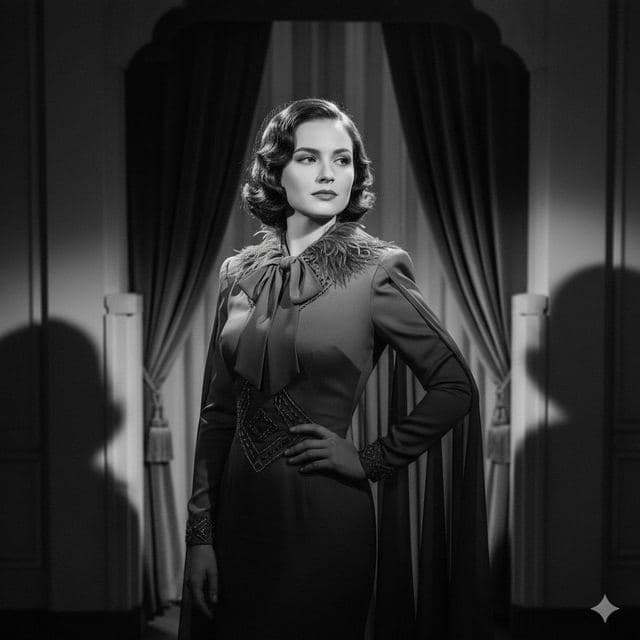
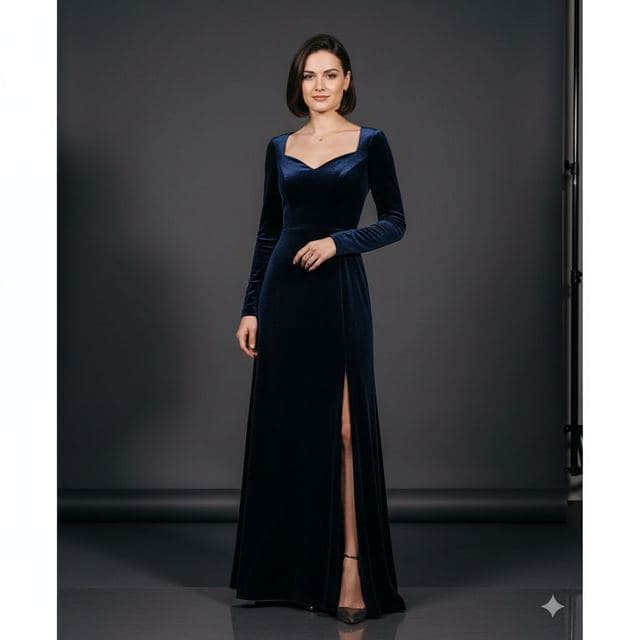
Most fake-looking face swaps fail for one of three reasons: the head angles don't match, the light comes from different directions, or the source photo is too small. Fix those and the AI has very little left to hide.
The tips below are ordered by how much difference they make, starting with the ones that fix most bad results.


1. Match the head angle
This matters more than anything else. A selfie looking straight at the camera works best on a template that also faces the camera. If the template's head is turned to one side, take a selfie turned the same way. Your phone's front camera makes this easy: just turn your chin until it looks like the template.
2. Match the light
Look at which side of the template's face is brighter. Then stand so the window is on that same side when you take your selfie. If you can't tell, use soft, even light: facing a window on an overcast day is ideal.
 Your photo
 Template
 Result
3. Use a sharp, recent selfie
Blurry in means blurry out. Hold the phone steady, tap to focus on your face and avoid night mode, which smooths skin texture. A photo from this year also means the result looks like you now.
4. Match the expression
A neutral selfie on a laughing template looks odd, and so does a big grin in a film noir portrait. Copy the template's expression roughly. You don't have to be exact, just in the same mood.
5. Mind the hairline and glasses
Hair comes from the template, so a template with a very different hairline from yours can make the forehead look stretched. Pick hairstyles close to your own when realism matters.
Glasses are fine if you wear them every day, but thick frames can confuse the model around the eyes. Take them off for the selfie if you get odd results.
6. Keep skin tone and age in range
The model adjusts skin tone to the template's lighting, but large jumps in complexion or age are where results start to look painted. Templates with similar skin tones look most natural.
7. Pick forgiving templates
Black-and-white portraits hide small color mismatches entirely. Head-and-shoulders crops give the AI more pixels to work with than full-length shots. If you want your most realistic result, start with the black-and-white or casual templates.


8. Compare before you share
Open the result at full size and check three spots: the jawline, the hairline and around the eyes. If one looks off, change one thing (the selfie, the angle or the template) and swap again. History keeps every attempt so you can compare them.
Questions
Why does my face swap look blurry?
The selfie was soft or the face was small in the frame. Retake it in daylight, tap to focus on your face, and fill more of the frame with your head.
Do glasses ruin a face swap?
Not usually. Thin frames are fine. Thick frames or sunglasses can confuse the model around the eyes, so take them off if the eyes look wrong.
Keep reading

Swap faces between two photos
Swap faces between any two photos on your phone: pick the face, pick the target, tap swap. How to match angle and light so the result looks real.



AI photo face swap, with real examples
AI photo face swap for iPhone and Android: put your face into a styled photo template or swap faces between any two pictures. Ready in under a minute.

Cinematic & Black-and-White Face Swap Templates
Film noir, black-and-white portrait, movie poster, gothic chapel. 8 dramatic face swap templates that turn a selfie into a cinematic portrait.