
How to Face Swap on Snapchat

To face swap on Snapchat, open the Camera and tap the magnifying glass while the lens carousel is showing. That opens Lens Explorer: search for "face swap", tap one of the Face Swap lenses made by Snapchat, point the camera at the faces and tap the camera button. A lens you add from Lens Explorer stays in your carousel for 24 hours.
Snapchat's face swaps work on faces in the live camera. Its help pages don't describe a way to swap faces inside a photo you already saved, so the second half of this guide shows how to do that with a two-photo face swap in your browser.
Quick steps
- Open the Camera. Open Snapchat on the Camera screen.
- Open Lens Explorer. Tap the magnifying glass icon while the lens carousel is showing.
- Find a Face Swap lens. Search for face swap and tap a Face Swap lens with Snapchat as the creator. It's added to your carousel for 24 hours.
- Frame the faces. Point the camera at your face, and at your friend's too if the lens swaps two people.
- Take the Snap. Tap the camera button for a photo, or press and hold it for a video.
Where is the face swap lens on Snapchat?
The Face Swap lens is in Lens Explorer: on the Camera screen, tap the magnifying glass while the lens carousel is showing, search for "face swap" and pick a Face Swap lens with Snapchat as the creator. It stays in your carousel for 24 hours.
Lens Explorer holds thousands of lenses built by Snapchatters, and many results are called Face Swap. Snapchat's own face swap lens gallery shows two made by Snapchat itself.
There are two other ways in. If a friend sends you a Snap made with a lens, swipe up on it to open the Context Card and try the lens (not every Snap has one). And scanning a Snapcode with a circle in the middle unlocks a special lens for a limited time.
How to face swap with a friend's Snap
Snapchat also has a Face Swap mode for remixing a Snap someone sent you. Its help page lists four steps:
- Press and hold the Snap or Chat media you want to remix, or tap the three dots.
- Tap Remix Snap and choose to remix With Snap.
- Make sure your face is in the camera frame, then take a Snap.
- Send the remix.
As with the lens, your side of the swap comes from the live camera, not from a saved photo.
Why don't I see the face swap lens?
You may not see the face swap lens because lenses rotate by person and by day, your Snapchat app is out of date, a lens you added more than 24 hours ago has left your carousel, or your phone is too old for some lenses. Check each in turn:
- Lenses change. Snapchat says lenses become available to people at different times and can change from day to day, so you may not have the same lenses as your friends.
- The app is out of date. If you're missing lenses your friends have, Snapchat's advice is to update the app to the latest version.
- It dropped out of your carousel. A lens added from Lens Explorer stays for 24 hours. Tap the heart on it to keep it in your Favorites.
- Your phone is older. Some lenses aren't supported on older devices. Snapchat lists lenses as supported on iOS 12 or newer and on most Android devices with Android 4.4 or newer, and says video capture with face shift lenses isn't supported on older Android devices.
- That exact lens is gone. The available lenses are always updating. Search Lens Explorer again for another Face Swap lens.
Tips for a cleaner face swap with a lens
For a cleaner lens swap, use soft, even light, look straight at the camera, keep both faces level and about the same distance from the phone, and take off thick glasses or sunglasses. These are our tips from working with face swap models every day, not instructions from Snapchat, and they apply to most face swap tools.
Can Snapchat face swap a photo from your camera roll?
No, not as an edit to the saved photo. The face swaps Snapchat documents, the Face Swap lens and Face Swap mode, work on a face in the live camera. Its help pages don't describe a way to swap the faces of two people in a saved photo, or to put your face into a picture you already have.
Some how-to guides describe a Face Swap lens that takes a face from your camera roll and puts it on your live face. Snapchat's help pages don't document that, and even then the result is a new Snap from the camera, not an edited copy of the saved photo. When a lens uses a Camera Roll image, Snapchat may show "Media Upload" in the upper left corner of the Snap, and that label can't be removed.
What happened to Snapchat Cameos?
Cameos have been discontinued. Snapchat's help page now says: "Cameos in Chat are no longer available." If you had a Cameos selfie, Snapchat uses it for My Selfie, which powers its generative AI features such as AI Snaps.
How to swap faces in a saved photo instead
When the photos already exist, such as a picture from last weekend or a Snap you saved to your camera roll, use a two-photo face swap. In Face Swap AI it works in your phone's browser, with nothing to install:
- Open the Face swap tool in Safari or Chrome.
- Tap Your face and pick the photo with the face you want to use.
- Tap Target photo and pick the saved photo the face should go into. Its hair, body, clothes and background stay as they are.
- Tap Swap faces. The first time, you sign in with Google or a code sent to your email.
- Download the result, or send it on from your phone's share sheet.
To trade faces with a friend, run it twice: once with your face on their photo, then the other way round. Each photo should show one person, because Face Swap AI doesn't swap faces between two people in the same photo. It makes photos only, not videos or GIFs, and downloads have no watermark.
Swaps are paid: a one-time starter pack is $4.99 for 15 swaps, and a swap that fails isn't counted. Step-by-step guides for your phone: face swap on iPhone and face swap on Android.


Snapchat face swap lens or Face Swap AI: which to use
| Snapchat Face Swap lens | Face Swap AI | |
|---|---|---|
| Works on | Faces in the live camera | Two photos you upload |
| Photos you already saved | Not as an edit to the photo | Yes |
| Video | Yes, press and hold the camera button | No, photos only |
| What you need | The Snapchat app | A browser; you sign in when you swap |
| Result | A Snap to send, or save to Memories | An image file to download, no watermark |
Use Snapchat for a quick laugh with a friend who's right next to you, or when you want video. Use a two-photo swap when the photos already exist, or when you want a still image you can keep and post anywhere.
Snapchat details were checked on October 27, 2026, on Snapchat's own support pages: using Lenses, finding new Lenses, Face Swap mode, missing Lenses, Lenses not working, Media Upload label, Cameos and My Selfie. Snapchat changes its lenses often, so names and menus may differ in your app.
Questions
How long does a lens stay in my Snapchat carousel?
A lens you add from Lens Explorer stays in your carousel for 24 hours. Tap the heart on it to add it to your Favorites so you can find it again later.
Can I face swap on Snapchat with a friend who isn't with me?
Yes, if they send you a Snap. Press and hold it, tap Remix Snap, choose With Snap, and take a Snap with your face in the frame. That's Snapchat's Face Swap mode.
Can I use a photo saved from Snapchat in Face Swap AI?
Yes. Save the Snap to your camera roll, then add it as the face photo or the target photo. The studio accepts JPG, PNG and WebP images.
Keep reading
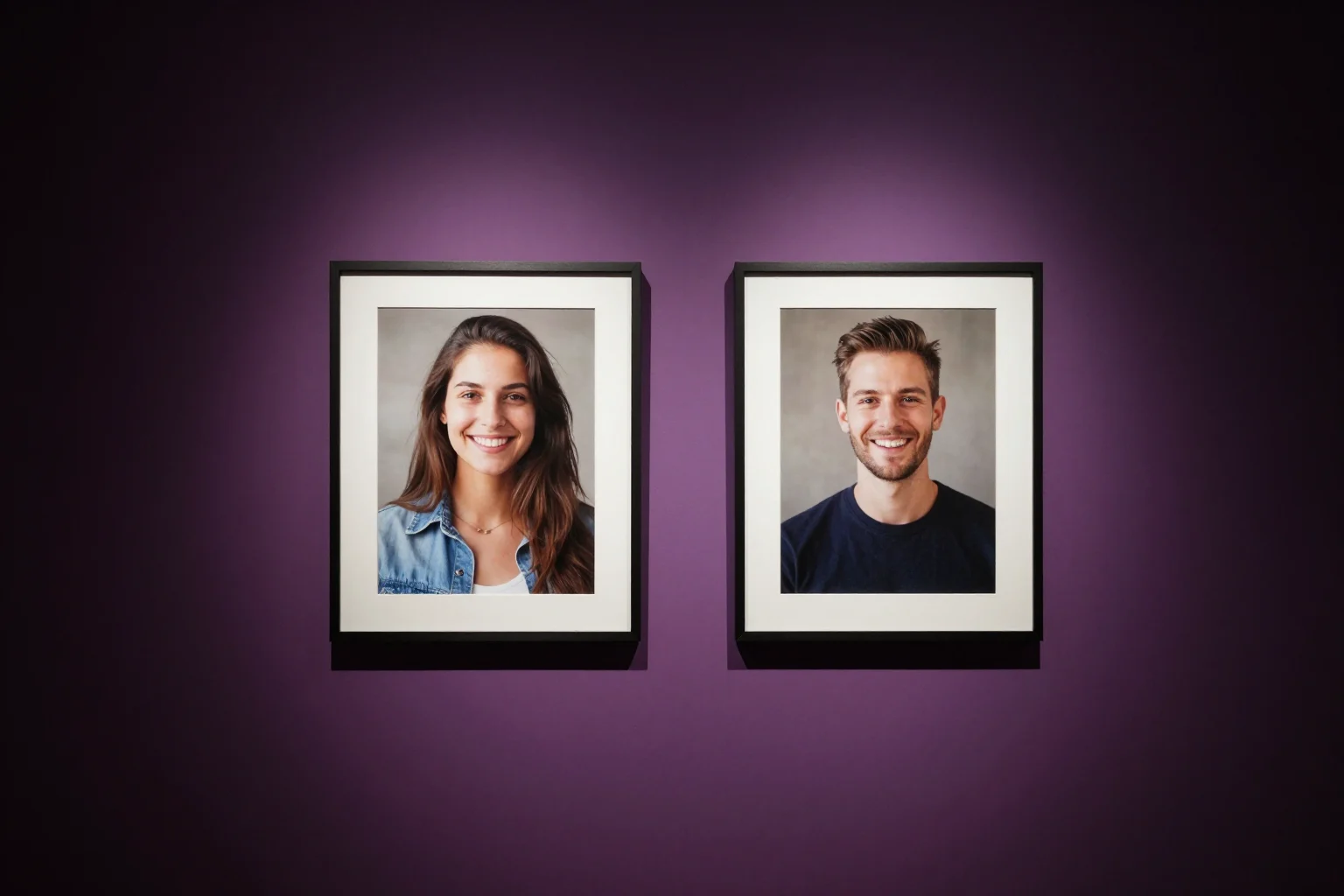
Swap faces between two photos
Swap faces between any two photos in your browser: pick the face, pick the target, tap swap. How to match angle and light so the result looks real.
Face swap on iPhone, no app needed
Face swap on iPhone right in Safari: open Face Swap AI, pick a template, take a selfie, tap Swap faces and save to Photos. Nothing to download.



Face swap on Android, no app needed
Face swap on Android in Chrome: open Face Swap AI, take a selfie, pick a template or your own photo, tap Swap faces and save it. Nothing to install.