
Multiple Face Swap: Change Several Faces in One Photo

You can swap several faces in one photo with the group photo tool: add a photo with 2 to 6 people, choose a new face for each person you want to change, and Face Swap AI swaps them all at once. Everyone you leave alone keeps their own face, and the result is one photo, ready in seconds.
It runs in your browser on a phone or a computer. Each face you change uses one swap from your starter pack, and you see a blurred preview before you pay.
Quick steps
- Add the group photo. Open the group photo tool and add a clear photo with 2 to 6 people facing the camera.
- Check the faces found. The tool shows every face it found in the photo, numbered.
- Add the new faces. Under each person you want to change, add a photo of the new face. Leave the others empty to keep them.
- Swap and download. Tap Swap faces. All chosen faces are swapped at once, and you download one finished photo.
How multiple face swap works
A multiple face swap changes several people in the same photo in one go. Face Swap AI first finds every face in your group photo and shows them to you. You decide who gets a new face, and the AI blends each new face into that person's place, matching their skin tone, angle and light, while the rest of the photo stays exactly as it was.
- 2 to 6 people per photo. Faces need to be clear and turned towards the camera.
- Change some or all of them. Anyone without a new face keeps their own.
- One swap per face changed. Swapping 3 faces uses 3 swaps from your pack.
- Photos only. Face Swap AI doesn't swap faces in videos or GIFs.
What people use group face swaps for
Group face swaps are mostly for fun with people who are in on it: swapping faces between friends in a party photo, putting the whole family into a holiday picture, or making a team photo for a farewell card.
- Swapping faces between friends in the same photo, then swapping them back.
- Putting your face, and a friend's, into a wedding, prom or team photo for a joke card.
- Fixing a group photo where one person blinked, using a good photo of that same person.
Only use faces of people who agreed to it, and say a photo was edited with AI when you share it. Our guide to face swap laws explains where the line is.
Tips for a realistic group face swap
The best results come from photos where every face is sharp and well lit. A new face that matches the original person's angle and expression blends in best.
- Use a group photo where faces are at least the size of a thumbnail on screen. Tiny faces in the background may not be found.
- For each new face, pick a photo facing the same way as the person it replaces.
- Similar light helps: an indoor face photo for an indoor group photo.
- If a face isn't found, crop the photo a little tighter around the group and try again.
More advice in our tips for realistic face swaps.
Group photo, two photos or templates: which tool to use
| You want to | Use | Swaps used |
|---|---|---|
| Change several people in one photo | Group photo tool | 1 per face changed |
| Put one face into one photo you choose | Face swap (two photos) | 1 |
| Put your face into a ready-made portrait | Templates | 1 |
For a single face, see how to swap faces between two photos, or browse the photo templates.
Questions
How many faces can I swap in one photo?
Up to 6. Face Swap AI shows the faces it found in your group photo, and you choose which ones to change. Faces that are very small, blurred or turned away may not be found.
How much does a multiple face swap cost?
Each face you change uses one swap. The starter pack is $4.99 for 15 swaps, paid once with no subscription, so swapping 3 faces in a photo uses 3 of them. Failed swaps aren't counted.
Can I swap faces between people in the same photo?
Yes. Add a photo of each person's face as the new face for the other one. For a straight swap between two friends, use a separate photo of each of them.
Does it work on videos or GIFs?
No. The group photo tool works on photos only. Face Swap AI doesn't swap faces in videos or GIFs at the moment.
Keep reading
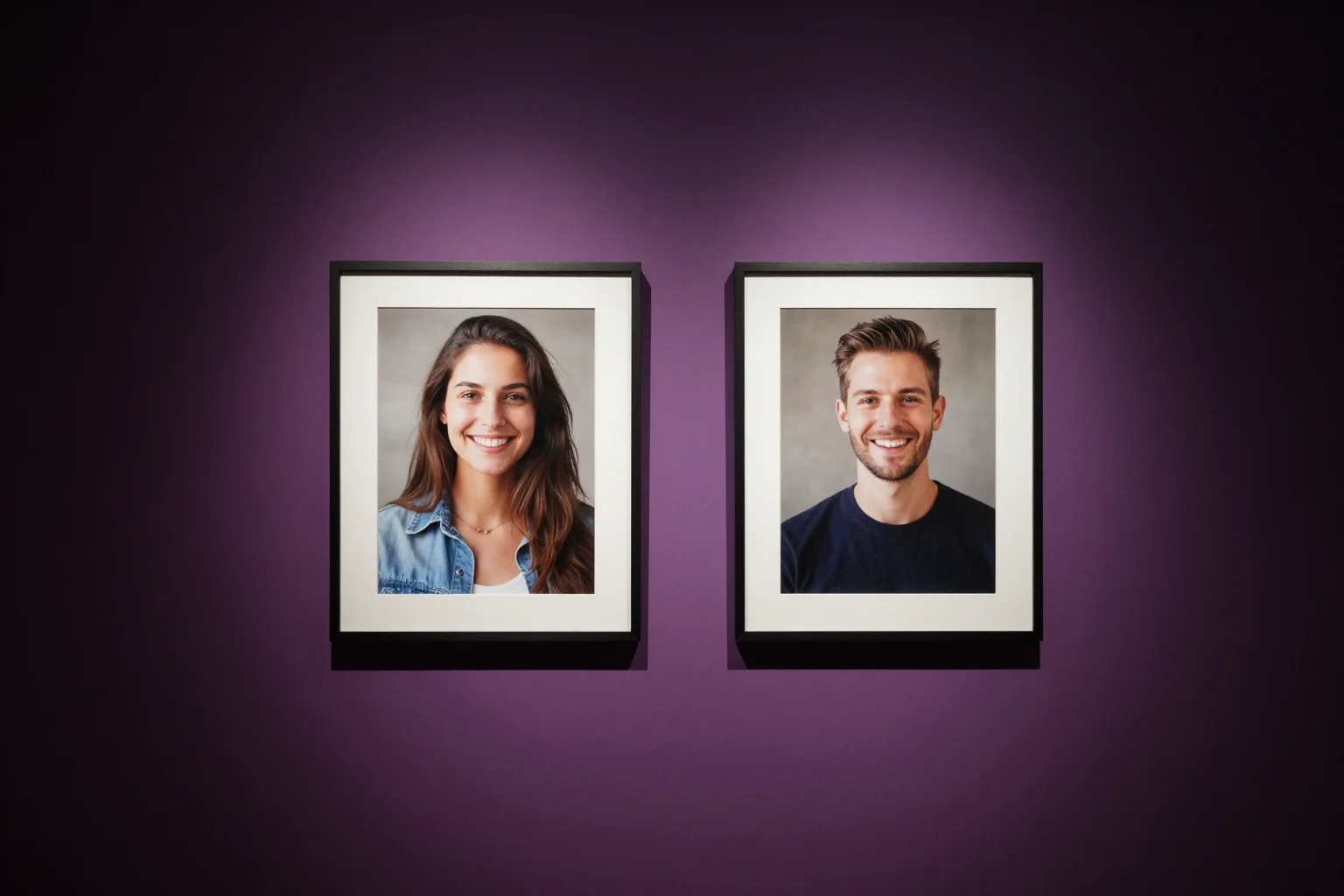
Swap faces between two photos
Swap faces between any two photos in your browser: pick the face, pick the target, tap swap. How to match angle and light so the result looks real.
8 tips for a realistic face swap
Why some face swaps look fake and how to fix it: angle, light, sharpness, expression, hair, glasses and skin tone. Eight tips for any AI face swap app.
AI face swap online, in your browser
Swap faces online with Face Swap AI, no app or download: 50+ photo templates or your own two photos, results in seconds on any phone or computer.